Configuring metadata tables
Most databases have a catalogue of tables that describe the database itself: data dictionaries, UDF configuration, column descriptions, lookup definitions. Common examples:
- Oracle:
ALL_TABLES,ALL_TAB_COLUMNS, plus any application-level dictionary tables your team or vendor maintains. - SQL Server:
INFORMATION_SCHEMA.COLUMNS,sys.columns, plus any application-level metadata tables your team maintains.
DataStar surfaces the tables you add to the metadata tables list to the AI agent — their names are included in the workspace info the agent reads at the start of a conversation (get_workspace_info), so it knows which dictionary tables are worth querying through execute_sql.
Why configure them
With a metadata table list in place, an agent can answer questions like:
- "What user-defined columns exist on the
ACCOUNTtable?" - "Which tables reference a specific party code?"
- "How many columns have no description?"
Without configuring any, the MCP still works — the agent can inspect physical schema by running read-only execute_sql queries against INFORMATION_SCHEMA, sys.*, or the Oracle data dictionary. Listing your application-level dictionary tables just means the agent is told about them up front, instead of having to discover or guess them.
How to configure
- Open the workspace you want to configure for.
- Workspace → Workspace Settings (or the cog icon on the workspace in the sidebar).
- Select the MCP tab.
- Click Add table and enter a table name. You can enter:
- Just the table name, e.g.
UDF_CONFIG - Or schema-qualified, e.g.
APP.UDF_CONFIG
- Just the table name, e.g.
- Repeat for each metadata table you want to expose.
- Save.
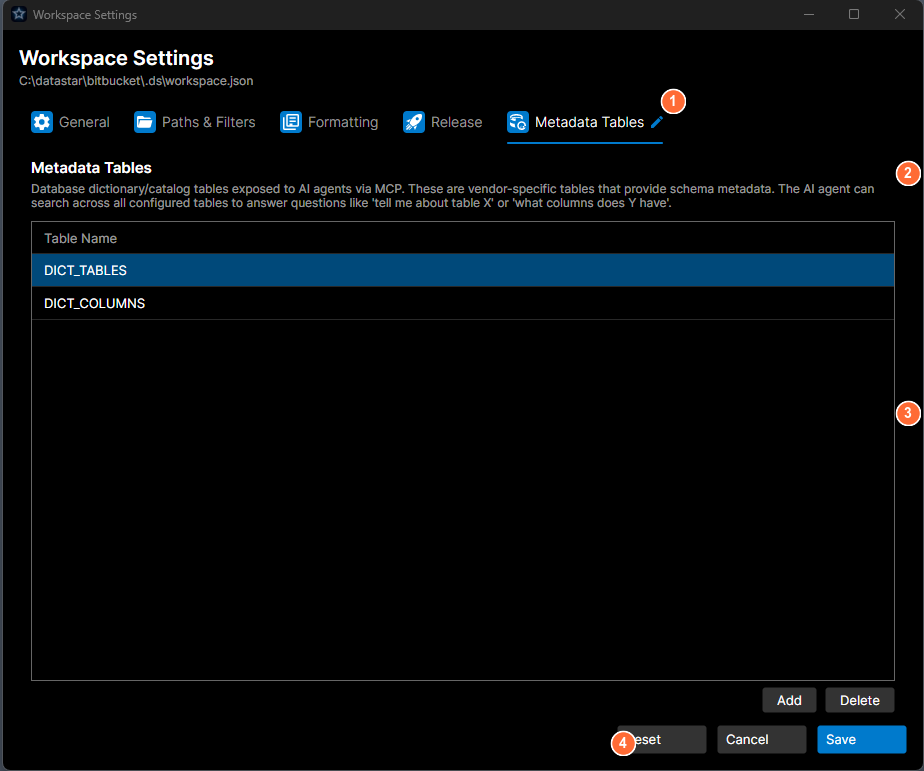
- Tab bar: select the Metadata Tables tab.
- Description: explains what metadata tables are and how the AI agent uses them.
- Table list: the tables exposed to MCP; Add and Delete buttons on the right.
- Action buttons: Reset, Cancel, or Save.
The settings are per-workspace, stored in the workspace's user settings file. Your teammates won't inherit them automatically; share the list as part of your onboarding.
What the agent can then do
Once a table is in the list, its name is surfaced to the agent in get_workspace_info. The agent then reads it with execute_sql in read mode — an ordinary, validated SELECT:
SELECT column_name, description FROM UDF_CONFIG WHERE table_name = 'ACCOUNTS'
Because read mode accepts any single SELECT, the agent can filter, join, project, count, and search across these tables however it needs — there's no separate query DSL to learn.
Recommended starter sets
- Oracle (generic)
- SQL Server (generic)
- Application-specific
ALL_TABLESALL_TAB_COLUMNSALL_CONSTRAINTSALL_TAB_COMMENTSALL_COL_COMMENTS
INFORMATION_SCHEMA.TABLESINFORMATION_SCHEMA.COLUMNSsys.extended_properties
Whatever reference tables your team uses to describe business concepts. For example, a REF_CODE_TYPES table that enumerates code systems, or UDF_CONFIG that drives user-defined fields.
Safety
- The agent reaches these tables through
execute_sqlin read mode, which validates the SQL up front and rejects any write (INSERT/UPDATE/DELETE/DDL/multi-statement) before it reaches the database. - The list is a discovery hint, not a security boundary. Read mode can
SELECTfrom any object the connection's database user can see — so restrict what the agent can read by restricting that user's grants, not by trimming the metadata list. - Nothing is cached; every call runs against the live database, so data is fresh.
Troubleshooting
The agent doesn't know a dictionary table exists. It's told about the tables you list here (via get_workspace_info). Add the table in Workspace Settings → MCP so the agent is pointed at it — or just name it directly in your prompt.
An agent keeps using the wrong schema prefix. Ask it to resolve the effective schema first with execute_sql in read mode — e.g. SELECT SYS_CONTEXT('USERENV','CURRENT_SCHEMA') FROM DUAL on Oracle, or SELECT SCHEMA_NAME() on SQL Server — and build names from that.
See also
- MCP Tool Catalog: full parameter reference.
- Using MCP from an AI Client: configure Claude or Kiro to use these tools.