Workspace Settings
Open with Workspace → Settings… on the main menu bar. A modal window with five tabs.
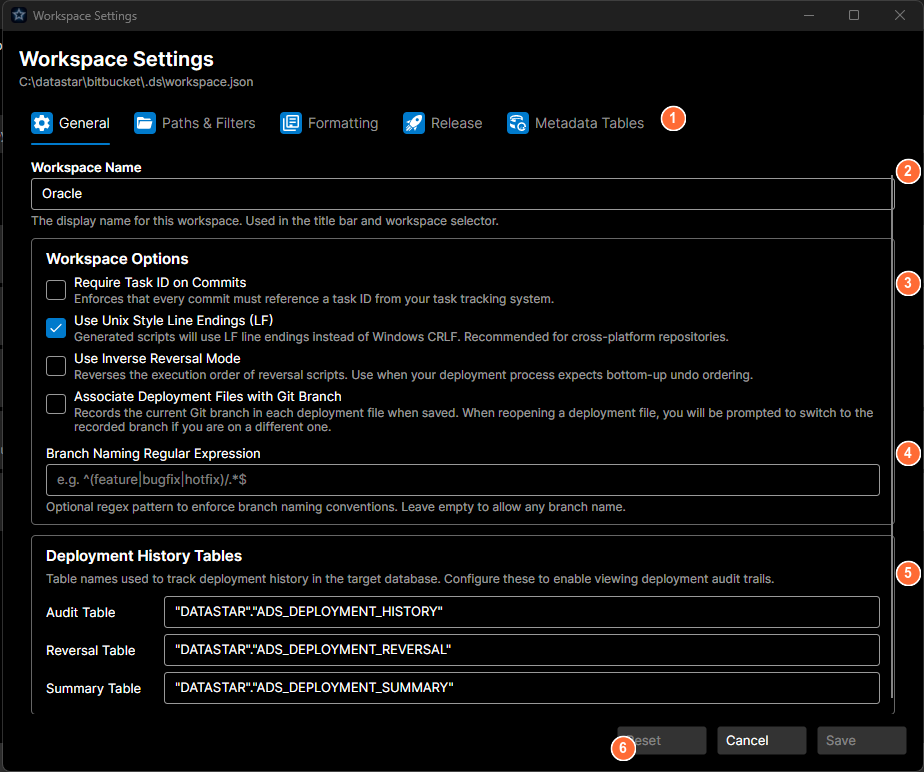
- Tab bar, five tabs: General, Paths & Filters, Formatting, Release, Metadata Tables.
- Workspace Name: the display name for this workspace.
- Workspace Options: checkboxes for task-ID requirements, line endings, reversal mode, and branch association.
- Branch Naming Regular Expression: optional regex to enforce branch naming conventions.
- Deployment History Tables: table names for audit, reversal, and summary tracking.
- Action buttons: Reset, Cancel, or Save.
Bottom buttons
| Button | What it does |
|---|---|
| Reset | Revert all changes to last saved values. |
| Cancel | Close without saving. |
| Save | Save changes to the workspace file (default action). |
Validation errors appear in a single banner pinned across the top of the window rather than against the individual field. The banner stays visible regardless of which tab you're on, so a value rejected on a different tab can't be hidden behind your current view.
Tab 1: General
Workspace Name
Free-text field. The display name for this workspace, shown in the title bar and workspace selector.
Workspace Options
| Option | What it does |
|---|---|
| Require Task ID on Commits | Enforces that every commit must reference a task ID from your task tracking system. |
| Use Unix Style Line Endings (LF) | Generated scripts will use LF line endings instead of Windows CRLF. Recommended for cross-platform repositories. |
| Use Inverse Reversal Mode | Reverses the execution order of reversal scripts. Use when your deployment process expects bottom-up undo ordering. |
| Associate Deployment Files with Git Branch | Git workspaces only. Records the current Git branch in each deployment file when saved. When reopening a deployment file, you will be prompted to switch to the recorded branch if you are on a different one. |
| Branch Naming Regular Expression | Git workspaces only. Optional regex pattern to enforce branch naming conventions (e.g. `^(feature |
The two Git-only rows above are hidden on TFVC workspaces, so the General tab doesn't offer settings that don't apply.
Deployment History Tables
Table names used to track deployment history in the target database. Configure these to enable viewing deployment audit trails.
| Field | Example |
|---|---|
| Audit Table | DeploymentAudit |
| Reversal Table | DeploymentReversal |
| Summary Table | DeploymentSummary |
Tab 2: Paths & Filters
Component Location
Relative path where generated component scripts (tables, views, procedures) are stored, organised by subdirectory for each category.
Reversal Location
Relative path where reversal packages (undo scripts) are generated during deployment.
Template Directories
A list of directories containing script templates. Templates are loaded in order; duplicates from later directories are ignored.
- Columns: Path, Enabled (checkbox).
- Add / Delete buttons beneath the list.
Path Filters
External script locations included in deployment files. Use the Cloak column to exclude subdirectories and Weight to control execution order.
- Columns: Path, Weight, Cloak (checkbox).
- Add / Delete buttons beneath the list.
Tab 3: Formatting
File Name Formatting
Controls how component file names are formatted when generated. Invalid filename characters are automatically replaced.
| Option | What it does |
|---|---|
| Enforce Single Space Formatting | Collapses multiple consecutive spaces in file names into a single space. |
| Case Formatting | Dropdown: applies the selected casing rule (upper, lower, camel, or none) to generated component file names. |
Search & Replace Rules
Custom text substitutions applied to component file names during generation. Useful for removing prefixes, normalising naming, or stripping schema qualifiers.
- Columns: Search, Replace, Enabled (checkbox).
- Add / Delete buttons beneath the list.
Tab 4: Release
Controls what the Release Workflow does when you finalise.
Deployment File Storage
Choose where deployment files are stored during the release workflow. Radio buttons:
- Task Attachment. Saved as an attachment on the task.
- Workspace Location. Saved to a folder in the workspace under source control.
When Workspace Location is selected, an additional field becomes enabled:
- Folder Pattern. Where inside the workspace to save. Use
{TaskId}for the task ID. Example:releases/{TaskId}/{TaskId}.xml. A preview of the resolved path is shown beneath the input.
Git Tag on Finalize
Creates a Git tag when you finalise. Leave empty to skip. Placeholders: {TaskId} for the task ID and {DateTime:format} for date/time (e.g. yyyy.MM.dd-HH.mm).
Example: release/{TaskId}/{DateTime:yyyy.MM.dd}. A preview of the resolved tag is shown beneath the input.
Azure Pipeline Trigger
Queues the named pipeline after finalisation completes. Leave empty to skip.
| Field | Notes |
|---|---|
| Pipeline | Pipeline name, e.g. Deploy-Production. |
| Branch | Leave empty to use the current branch (Git) or the default. |
Tab 5: Metadata Tables
Database dictionary / catalogue tables exposed to AI agents via the MCP server. These are vendor-specific tables that provide schema metadata. The AI agent can search across all configured tables to answer questions like "tell me about table X" or "what columns does Y have".
- One column: Table Name.
- Add / Delete buttons beneath the list.
See the metadata tables guide for recommended starter sets.